Back to Maintenance Manager for Manufacturing Main Menu
Creating a Preventive Maintenance Schedule
The Preventive Maintenance Schedule feature allows Administrators and Technicians to create recurring maintenance plans that automatically generate work orders based on a defined schedule. Use preventive maintenance schedules to help reduce asset downtime, improve asset reliability, and ensure routine maintenance activities are performed on time.
For example, changing HVAC filters, annual boiler cleaning, fire extinguishers, etc.
To create a preventive maintenance schedule
-
Navigate to the
 (Preventive Maintenance) page.
 -
Click
 button at upper right corner of the page.
The Schedule PM page appears.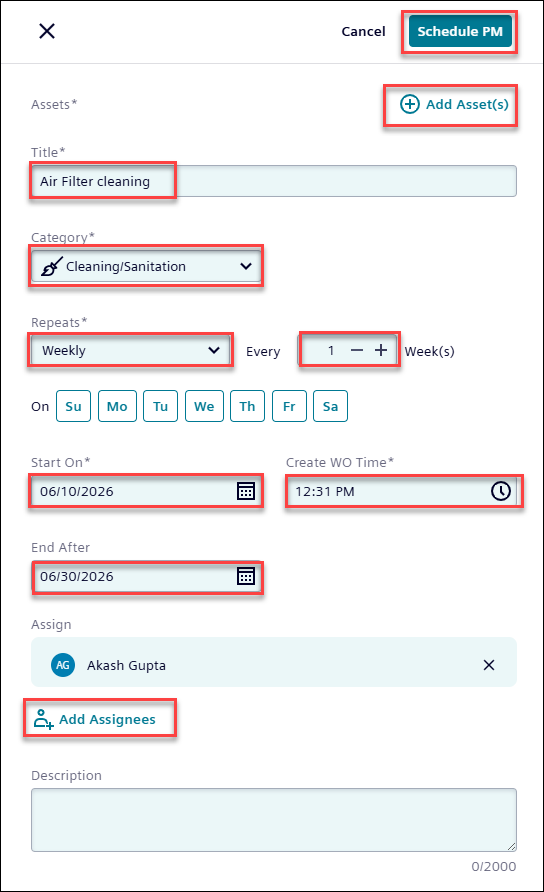
-
Click the
 button and search for or select an asset name from the list below.
 -
Click Done to add an Asset.
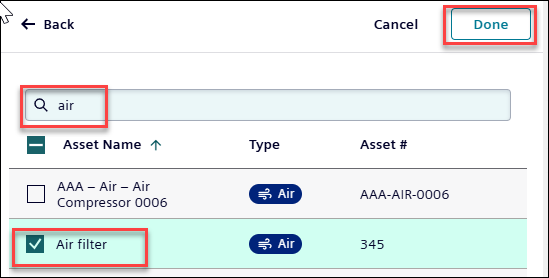
NOTE Ensure the asset is available in the list before selection. If the asset is not listed, see Adding and Managing Assets to add an asset.
-
Enter a Preventive Maintenance name in the Title field.
-
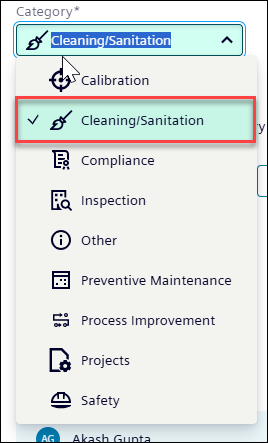
Select a category from the Category drop-down list.
-
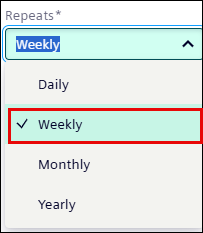
Click the Repeats drop-down list to select how many times you want to repeat the PM.
-
Enter a value in the Every field to set the recurrence intervals (days, weeks, monthly, and yearly).

-
In the On field, select the desired day of the week start the Preventive Maintenance.

-
Use the date picker from the Start On field to set the start date.
Do the same in the End After field to set the end date.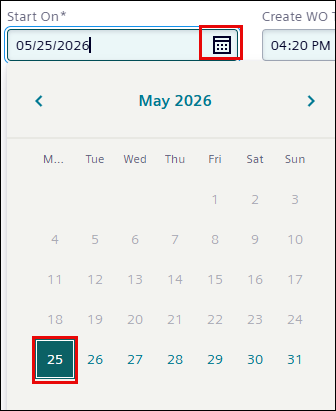
-
In the Create WO Time field, click
 to set the time to create a work order.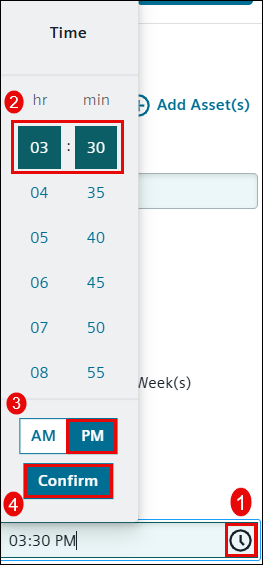
-
Click Assign button to add a assignee.
-
Enter or select an assignee.
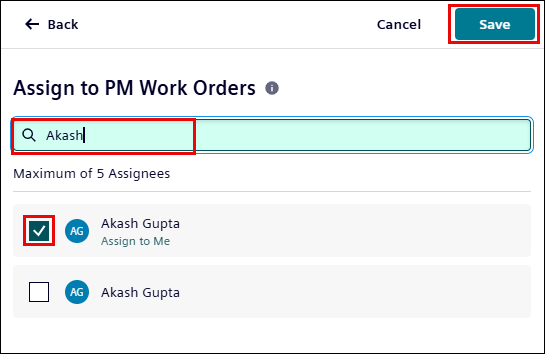
NOTE Maximum of 5 assignees can be added.
-
Optionally, In Description field, enter the description about the PM.
-
Click Schedule PM button at the upper- right to schedule the preventive maintenance.
NOTE Work Order created by a Schedule PM functionality will be automatically created and appears in the New section of the Work Orders page as per their schedule.
